
Thursday, 8 March 2018

3 Ways To Reset Windows 10 Admin Password?


Security
Windows Operating systems have always been a veritable asset to all the computer users and to the world of computers. In the years it has experienced many challenges and breakthroughs but has still kept its root in the sector of technological advancements.
Now Windows 10 was the first Windows OS which brought about a revolutionary changes to the conventional features of previous versions of XP/ Vista in terms of screen resolution, processor handling capabilities and many more with no end to the list of visions.



Friday, 15 December 2017

5 Websites to Download Trippy Wallpaper and Backgrounds

In this digital age, everyone has access to electronic devices such as laptop, tablet and mobile phones. People in this digital age wish that their device should look more attractive and different. One of the most common way to make the device look more attractive is using wallpapers.  Wallpapers are available in various categories, one of the trending category is trippy wallpapers. Trippy wallpapers are images with optical illusion and random patterns which can be used as  background for mobile, laptops and computer.  


Tuesday, 16 May 2017

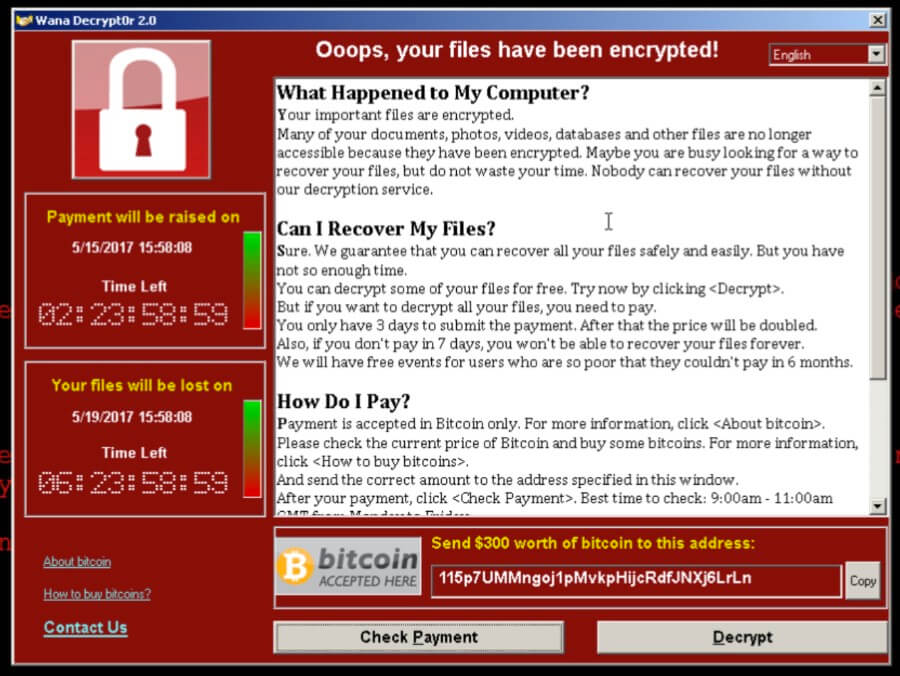
The WannaCry Ransomware Attack and its Solution

 The Wanna Cry Ransomware Attack is one of the most threatening cyber attacks which have their negative impact on 200,000 systems in around 104 countries all over the world. In fact it has been named as the largest by some prominent personalities. 
WannaCry Ransomware attack and Solutions


Tuesday, 2 May 2017

3 Ways to Reset Windows 10 Password

Couldn't sign into Windows 10 and forgot the administrator password? So if you forgot Windows 10 password, don't  panic! This tutorial will show you 3 simple ways to reset lost Windows 10 password and regain access to your computer.

Method 1: Reset Windows 10 Password with CMD


If you still have your Windows 10 installation DVD, you can use this backdoor to reset Windows 10 password from Command Prompt.
⦁ Boot your PC with the installation media for Windows 10.   Either DVD or USB will work just fine.
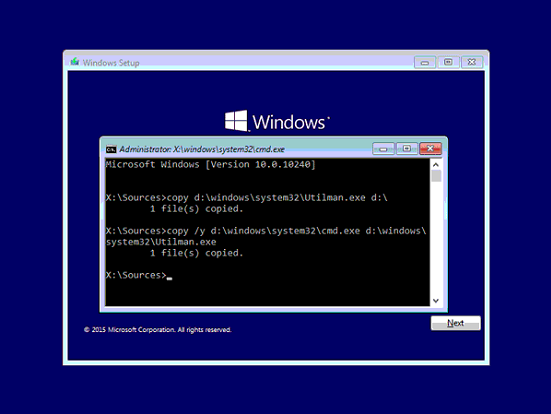
⦁ When prompted to "Enter your Language and other preferences",  press SHIFT + F10 and a command line window will open.
⦁ Now type in the following commands to backup utilman.exe, and  replace it with a copy of cmd.exe.
copy d:\windows\system32\utilman.exe d:\
copy /y d:\windows\system32\cmd.exe d:\windows\system32\utilman.exe


⦁ Reboot your computer. At Windows 10 sign-in screen, click on the "Ease of Access" icon in the lower right corner.  This will now open a Command prompt window where you can enter the following commands.
⦁ Type in net user command to reset forgotten password of your Windows 10 account.
So this is how you can reset Windows 10 password with command prompt. Novice users may need some help in getting this trick to work.

Method 2: Reset Windows 10 Password with Password Reset Disk


If you've created a password reset disk when you set up your computer first time, you can reset your Windows 10 password the easy way.
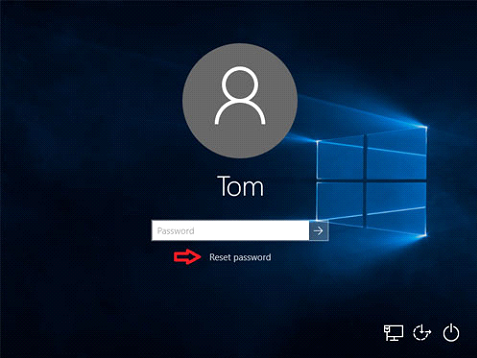
⦁ Start your computer. When booting to the login screen, enter a wrong password and hit Enter.
⦁ Windows 10 will display the "Reset password" link below the password field.

⦁ Click that link. The Windows password reset wizard will launch.
⦁ Insert your password reset disk and follow the wizard to set a new password for your computer.
⦁ After resetting, you can then log into Windows 10 with your new password.

Method 3: Reset Windows 10 Password with Bootable USB Drive

Windows lets you create a password reset disk so that you can access your PC and user account even if you forget the password. But the problem is that many Windows users don't create a password reset disk after setting up a complex password.
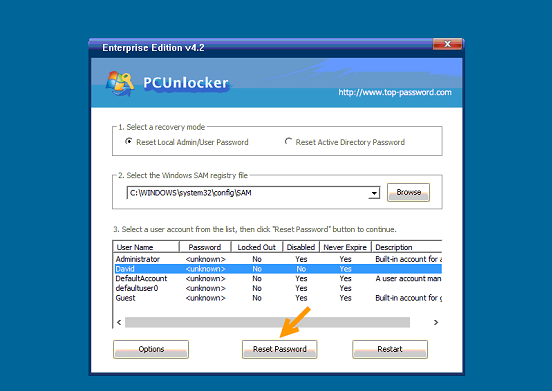
To get rid of Windows 10 password, you can take use of PCUnlocker - a bootable disk that helps resetting forgotten Windows 10, 8.1, 8, 7, Vista and XP password easily. Let's see how it works:
⦁ Start the procedure by downloading PCUnlocker ISO file. Of course, since you don't have access to your PC, you will need to download this software on another PC that you have access to.
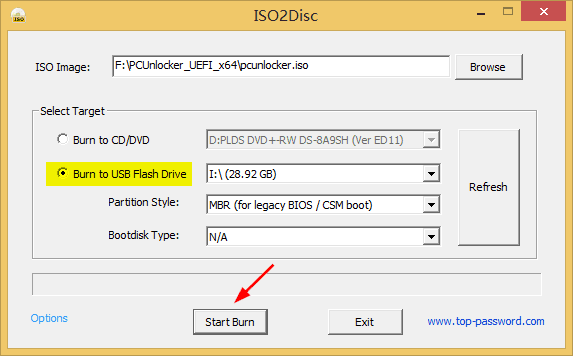
⦁ Download and install the free burning program ISO2Disc on your PC. Launch ISO2Disc and locate the PCUnlocker ISO file you've downloaded, and create a bootable USB drive (or CD).


⦁ Turn on your PC that you would like to access to by resetting forgotten Windows 10 password, insert the USB drive, make necessary changes to the BIOS to boot from USB.
⦁ After booting to the PCUnlocker screen, select your user account and click the Reset Password button to clear your password.

⦁ Reboot your computer. You can now sign into Windows 10 without a password!


Monday, 20 March 2017

2 Simple Ways to Reset Forgotten Windows 10 Password

Windows Computer
Every computer user has some crucial personal or professional information in their personal computer and therefore it needs to be protected. It needs password protection so that any third party interruptions can be stopped and data leakage can be saved. Sometimes bypassing the windows password can be cumbersome and hectic process, but the best two ways by which one can reset Windows 10 passwords are as follows:

Part 1: Reset Windows 10 Password with Command Prompt

Command prompt is one of the easiest and free methods to opt for resetting the settings for the screen lock in windows 10. Though, it is very risky and difficult for a common user to take command prompt as a technique to reset forgotten password. But this method is especially recommended for the users who have some technical knowledge about command prompt.

Step 1: Restart your personal computer/Laptop. As the computer begins to restart then press F8 key to enter the Safe Mode


Step 2:  After entering to Safe Mode display, navigate to ‘Advanced Boot Options’. The screen would then display three options to boot the computer,

Step 3: Choose ‘Safe Mode with Command Prompt’. After waiting for a few seconds, windows will boot up and the Login screen will be visible.

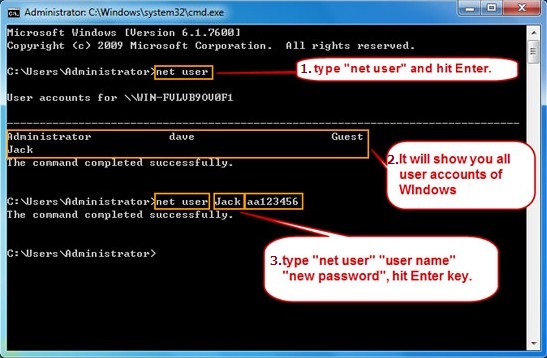
Step 4: Then got to Start, choose the Run option and then type cmd.exe. A command prompt window will open, then the user needs to type net user and then press enter.


Command Prompt


Step 5:  All user accounts list will be displayed by pressing enter button. The user must choose the required account. As the command is executed successfully, then the new password would also set successfully.

Just to be cautious, if the user is not from a technical background then they should not use this method to bypass windows 10 password since any wrong step executed in safe mode or in command prompt can damage the computer settings and can also cause loss of major data and memory.


Part 2: Reset Windows 10 Password with UUkeys Windows Password Mate
By using UUkeys  Windows Password Mate, one can efficiently reset their forgotten password without any damage to the system date and without any system re-installation. UUkeys software has focused on practical and easy to use software development for the user. When compared to the same products with the same utility base in the market, this software has an advantage with its simple structure, easy installation process, and safety parameters. Moreover, it requires nearly no technical knowledge to perform the bypass for windows 10 password. Changing the windows password with UUkeys is as simple as counting 1-2-3.
Step 1: Download the UUkeys software from the Internet and then install it on a required computer or laptop. Start the UUkeys program installed on the computer.

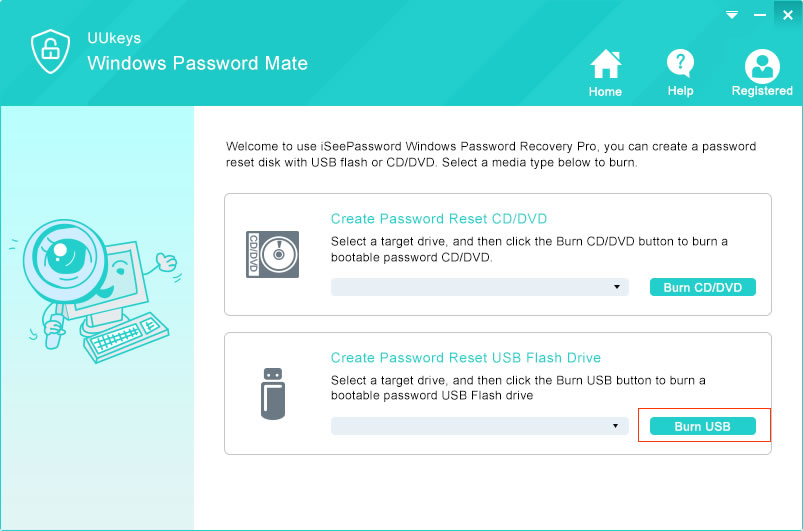
Step 2: Insert a USB flash drive or insert a blank DVD /CD in the computer. It will start to construct a built in ISO image by burning a reset disk.
UUkeys


Step 3: Insert the password reset disk to the locked Windows 10 computer and change the boot order in BIOS settings in order to make the computer booting from it.
windows password mate


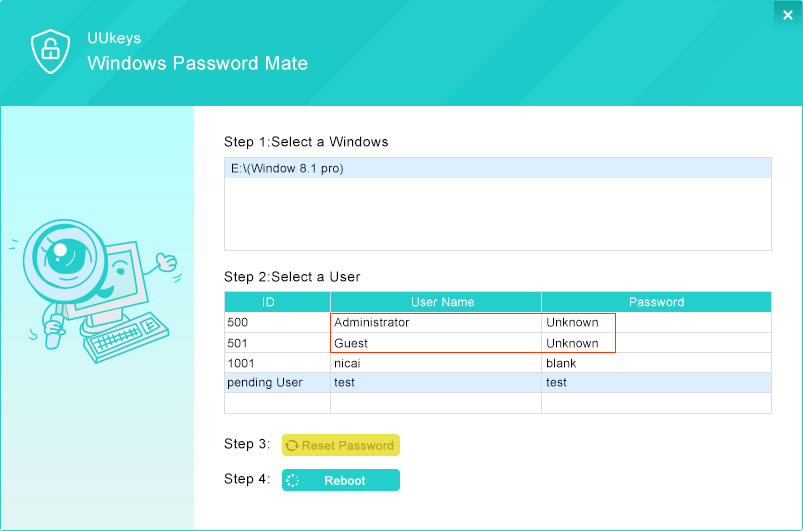
Step 4:  Restart the locked computer with pre-created burned disk. You will UUkeys Windows Password Mate lists all the user accounts from the computer. Then choose an account and click Reset Password button. A few seconds later, the password will be removed. 

UUkeys software is tested on every version of windows and hence it completely supports each and every OS like Windows 10, Windows 8.1, 8, Windows 7 (32 bit and 64 bit), Vista, XP, NT, 2000 etc. It fully supports all ranges of laptops, desktops, and servers. Though, one should choose the right version of UUkeys depending on their use, since UUkeys have launched their software in three various versions known as Advanced, Standard and Professional version.
UUkeys has features of easy to use since it involves only three steps to recover the password and bypass the windows forgotten password, it is flexible with any type of reset disk be it a USB or DVD or CD. Moreover, it is 100% safe since it provides absolute security to the data and is compatible with any operating system.


Saturday, 18 October 2014

Create Bootable USB Drive of Windows/Linux or Any other OS

how to create bootable usb drive for windows/linux/unix
Strenuous situation arises when you want to fresh install your operating system and your CD/DVD ROM is not working properly. In that case only feasible solution is that replace your buggy CD/DVD ROM with another working CD/DVD ROM, so that you can fresh install a new operating system using a bootable CD. But what if, today we reveal a way by which you can fresh install new operating system without bothering about your buggy CD/DVD ROM.


Saturday, 24 May 2014

How to Install Whatsapp on PC

How to install whatsapp on PC
Whatsapp is an Smartphone based application for real time messaging and media sharing. More than 500 Million Smartphone users are using whatsapp on their mobile phones. The reason behind whatsapp popularity is pretty obvious, it’s because whatsapp is one of the best Smartphone messaging application available today which is loaded with several handy features. But one of the biggest pitfalls of whatsapp is that it’s not widely compatible with many mobile phones. If you belong to one of the class of people on whose mobile phone whatsapp is not supported, then you have come to the right place. Today we are going to share a whatsapp trick on “How to install whatsapp on PC”.


Wednesday, 29 January 2014

6 Best Browsers for Windows 8

Best Browsers for Windows 8
Microsoft has officially launched windows 8 operation system on October 2012. Windows 8 is good os for the peoples who are crazy for internet. Microsoft has implemented concepts like metros to make it more web friendly. But one thing that Microsoft’s operating systems has been lacking is a fast browser. All the versions of windows come with internet explorer as a default browser. Most of the times, IE lacks to provide good internet surfing experience, so window’s users often search for alternatives browsers. To make your search easy, we are sharing 6 best browsers for windows 8, which are developed to deliver high performance and speed. So in case if you are looking for an alternative to internet explorer, don’t forget to check Geekscab’s list of best browsers for windows 8.


Monday, 20 January 2014

How to Install and Run Android Apps on Windows PC

How to install and run android apps on windows pc
Now day’s Google is offering numerous android apps at Google play. If you are an android user then you can download thousands of handy android applications from android market. In case if you are not an android user then also you can enjoy android applications by running them on pc. So today we are sharing an article on How to install and run android apps on windows pc. This article consist 3 methods by which you can install android apps on windows. So if you are looking to run android apps on windows OS like windows xp, 7 or windows 8, then this article is must for you.


Thursday, 16 January 2014

6 Common Pen drive Problems and Their Solutions

Common Pen drive Problems and Their Solutions
Pen drives or flash drives are the best way to carry huge amount of data from one place to another. Pen drives offer a cheap and reliable way to store data. They are reliable because unlike other storage mediums, they don’t have moving parts. Pen drives stores data in magnetic form and that’s why they are re writable in nature. But despite of having so many advantages of using pen drives, there are some disadvantages too. These disadvantages are nothing but only some common pen drive problems that most of us face regularly.